eBrevet 을 이용한 퍼머넌트 인증 가이드 eBrevet Guide for Permanent rides
퍼머넌트 eBrevet 사용 안내
eBrevet 이 어느 정도 안정화되어, 우선 퍼머넌트 라이딩에 적용하고자 합니다.
퍼머넌트를 이용하시는 분들은 이제 eBrevet 을 통해 보다 편리하게 인증할 수 있습니다.
아래 사이트에 접속하여 회원가입 후 사용해 주세요.
참고: 기존 방식대로 퍼머넌트를 진행하셔도 됩니다.
이용 절차
1. KORA 홈페이지에서 퍼머넌트 신청
먼저 KORA 홈페이지에서 참가하려는 퍼머넌트를 신청하고 참가비를 결제합니다.
2. eBrevet 에서 퍼머넌트 신청
eBrevet 가입 후 로그인하여, 퍼머넌트 메뉴에서 동일한 퍼머넌트를 신청합니다.
3. 온라인 면책 동의 진행
신청과 동시에 온라인 면책동의 페이지로 이동합니다.
다음 항목을 진행해 주세요.
- 면책 항목 체크
- 이름을 알아보기 쉽게 입력
4. 출발 등록
퍼머넌트의 출발지(Start Point) 또는 순환코스의 시작 CP 에서:
- eBrevet 의 “컨트롤체크 & 면책” 메뉴 선택
- 코스 선택에서 해당 퍼머넌트 선택
- 아래에 표시되는 신청 리스트에서 해당 퍼머넌트의 “Start” 클릭
5. 카카오톡으로 얀(Jan :010-8915-7046)님께 정보 전달
KORA 신청 여부 확인을 위해 아래 4개 항목을 카카오톡으로 보내 주세요.
- eBrevet 이용 여부
- 퍼머넌트 번호
- KORA 번호
- 이름
6. 현재 위치 확인
출발하려는 CP 또는 Start Point 에서:
- eBrevet 의 “컨트롤체크 & 면책” 메뉴 실행
- “현재 위치” 버튼 클릭
7. 사진 촬영 및 전송
현재 위치 확인 후:
- 사진 촬영
- “보내기” 버튼 클릭
주의사항
- GPS 정확도가 낮은 경우 오류 메시지가 표시되거나 시간이 오래 걸릴 수 있습니다.
- 오류 메시지가 표시되면 실외에서 다시 시도해 주세요.
- 반드시 완료 메시지가 나타날 때까지 기다려 주세요.
순환코스의 경우:
- 사진 전송 후 아래 CP 리스트 순서가 자동으로 변경될 수 있습니다.
- 변경되지 않으면 새로고침을 해 주세요.
8. 모든 CP 에서 동일하게 진행
모든 컨트롤 포인트 및 출도착지에서 아래 순서로 동일하게 진행하시면 됩니다.
- 현재 위치 클릭
- 사진 촬영
- 보내기 클릭
9. 라이딩 종료 후 완료 메시지 전달
마지막 CP 전송 후, 카카오톡으로 얀(Jan 010-8915-7046 )님께 라이딩 종료 메시지를 보내 주세요.
얀님에게 면책동의서와 사진을 보낼필요없습니다.
완료 후 처리
이후:
- 얀(Jan)님이 KORA 에 공식 결과를 등록합니다.
- eBrevet 에서도 라이딩 상태가 완주(Finished)로 처리됩니다.
완료 처리 후에는:
- eBrevet 의 “내 라이딩 기록” 메뉴에서 완주 인증서를 이미지 형태로 확인할 수 있습니다.
- 현재 인증서 이미지는 순차적으로 추가 중이며, 일부 퍼머넌트는 간략한 형태로 표시될 수 있습니다.
문제 발생시
https://open.kakao.com/o/gKxFAEii
참여코드 kora1234
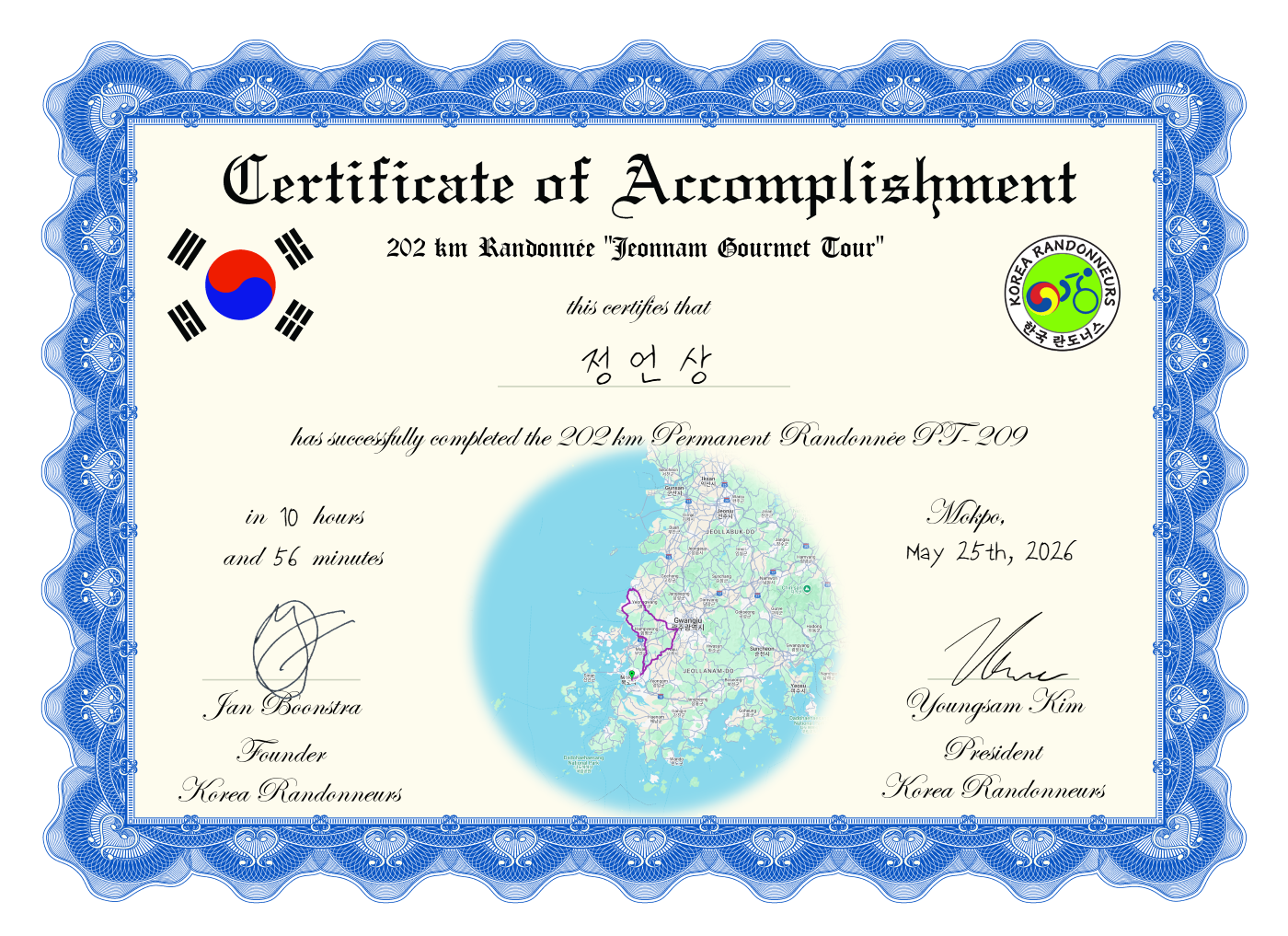
아래 이미지는 인증서 샘플 화면입니다.
------------------------------------------------
eBrevet for Permanent Rides
eBrevet has now become stable enough to be applied to permanent rides on a wider scale.
Riders who wish to use eBrevet can now do so for permanents.
Please visit
https://ebrevet.co.kr/
and create an account before use.
Important:
You may still use the existing conventional method if you prefer.
How to Use eBrevet for Permanents
1. Register for the Permanent on the KORA Website
Apply for the permanent ride you wish to ride on the KORA website and complete the payment.
2. Apply for the Permanent in eBrevet
After creating your eBrevet account, log in and apply for the same permanent ride in the Permanent section.
3. Complete the Online Waiver
Immediately after applying, you will be redirected to the online waiver page.
Please:
- Check all waiver agreement items
- Enter your name clearly and legibly
4. Start the Ride
At the permanent start point, or at the starting CP for loop courses:
- Open the “Control Check & Waiver” menu in eBrevet
- Select your permanent course
- Your applied permanent rides will appear below
- Click “Start” for the corresponding ride
5. Notify Jan via KakaoTalk
Please send the following information to Jan via KakaoTalk so that your KORA registration can be confirmed:
- Whether you are using eBrevet
- Permanent number
- KORA number
- Your name
6. Check In at the Start Point or CP
At the start point or the CP where you wish to begin:
- Open the “Control Check & Waiver” menu
- Press “Current Location”
7. Take and Upload a Photo
After confirming your location:
- Take a photo
- Press “Send”
Notes
- If GPS accuracy is poor, an error message may appear or the process may take longer.
- If this happens, please move outdoors and try again.
- Please wait until the completion message appears before leaving the page.
For loop courses:
- After uploading the photo, the CP order list below may change automatically.
- If it does not update, please refresh the page.
8. Repeat the Same Process at Every CP
At every control point and at the finish:
- Press “Current Location”
- Take a photo
- Press “Send”
Repeat the same process throughout the ride.
9. Notify Jan When Finished
After uploading the final CP:
Please send a KakaoTalk message to Jan to inform him that you have finished the ride.
After the Ride
Once completed:
- Jan will record the official result on the KORA website
- The ride status in eBrevet will also be updated to “Finished”
After that:
- Your ride certificate can be viewed in My Riding History in eBrevet
- Certificates are currently being updated gradually, so some permanents may temporarily display a simplified certificate image
The image below is a sample certificate preview.